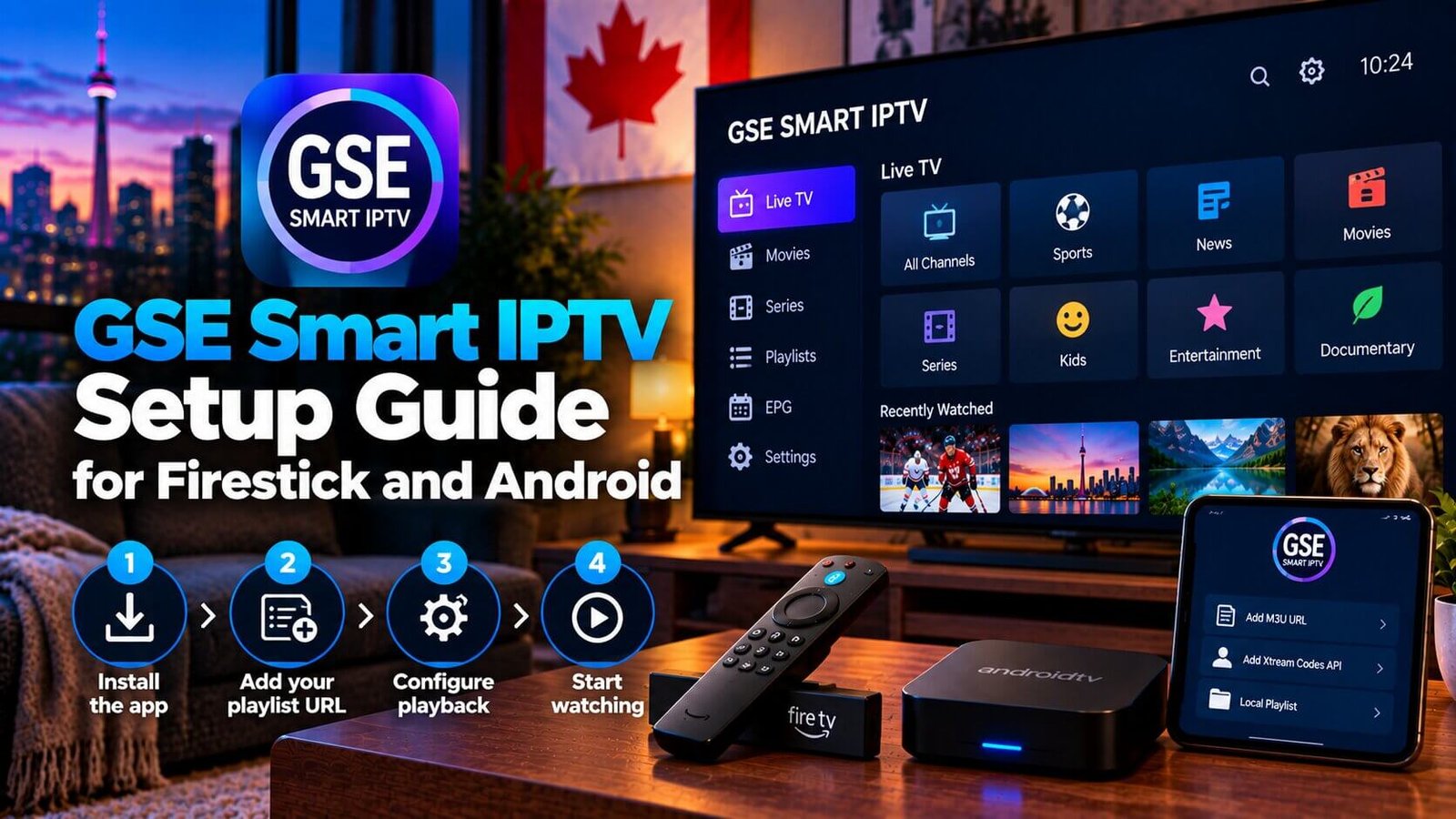
Several player apps are available for Firestick and Android devices, and some Canadian subscribers specifically search for one particular option, commonly known by the search term “gse smart iptv,” as an alternative to more widely recommended apps such as IPTV Smarters Pro. This guide explains what the app is, how to install it, how to add your own playlist details, and how it compares to that more widely used alternative already covered elsewhere on this site.
GSE Smart IPTV: What the App Is and How It Works
This app is a third-party player, distinct from the IPTV subscription itself, that plays a playlist supplied by your provider. Like other player apps covered on this site, it is software you install separately from your subscription, and it does not include any channels of its own; it simply displays whatever playlist or login details you enter after installing it.
The app has its own interface and menu layout, different from IPTV Smarters Pro or TiviMate, so if you have used one of those apps before, expect a different look and slightly different navigation even though the underlying purpose, playing your existing subscription, is the same.
Like most player apps covered on this site, the app does not verify or guarantee the content of your playlist; it simply displays whatever channels and information your provider’s playlist contains. If a channel does not load, the cause is usually related to your playlist, your subscription status or your internet connection rather than the player app itself, which is worth keeping in mind before assuming the app is at fault.
Installing the App on Firestick and Android
On a Firestick, this app is generally searched for and installed through your device’s app store search first. If it is not listed there, check only the app developer’s verified official source before considering any other installation method; do not install an APK obtained from an unofficial download site, since that carries security risks and the file’s authenticity cannot be confirmed. If no current official source can be located for your device, choosing a currently maintained alternative player app that is available through your device’s own app store is a safer option than sideloading from an unverified source. On an Android box or Android TV device, the Google Play Store is usually the more straightforward first place to check, since Android’s app ecosystem allows more direct installation than some other platforms.
Installation steps and menu wording can change between app updates and device firmware versions, so if what you see on screen does not exactly match a specific walkthrough, checking the app’s own current help documentation is a reasonable next step rather than assuming something has gone wrong.
If you cannot confirm a current official source for this app on your device, do not install it from an unofficial download site; installing an unverified app package carries security risks and the file’s authenticity cannot be confirmed from this guide. In that situation, choosing a currently maintained alternative player app available directly through your device’s own app store is the safer path.
Adding Your Playlist URL
After installing the app, you will typically be asked to add a playlist, usually through an M3U URL or a similar login method supplied by your IPTV provider. Entering these details correctly, exactly as your provider supplied them, is usually enough to populate your channel list inside the app; a common early mistake is a small typo in the playlist URL, which is worth double-checking first if channels do not appear.
If your provider also supplies a separate EPG (programme guide) URL, the app typically has a separate field for entering it, which, once added, can populate on-screen programme information alongside your channel list rather than showing a bare list of channel names only.
Many playlists also group channels into categories, such as by region or genre, which the app usually displays as folders or a filterable list rather than one long, unsorted list. If your channel list looks unusually short or entire categories seem to be missing after setup, checking that the full playlist URL was entered without being cut off is a reasonable first troubleshooting step before assuming channels are missing from your subscription itself.
This App vs IPTV Smarters Pro: Quick Comparison
Both apps serve the same basic purpose: playing a subscription playlist supplied by your provider. IPTV Smarters Pro is more widely used and is the app covered in our main setup guide, which means more community documentation and troubleshooting information is generally available for it. The alternative covered in this guide offers a genuinely different interface and layout, which some subscribers prefer, but it does not add extra channels, features, or capabilities beyond what your subscription itself provides.
Choosing between the two is largely a matter of interface preference rather than one app being definitively better, since both are simply different ways of displaying the same underlying subscription.
Frequently Asked Questions
Is this app free to use?
The app itself is typically free to download and install; your IPTV subscription is a separate cost from your provider. Check the app’s current store listing for its exact pricing model, since this can change over time.
Does this app support an EPG?
Yes, the app generally supports adding a separate EPG source URL alongside your playlist, when your provider supplies one, which can populate an on-screen programme guide rather than a bare channel list.
Is this app better than IPTV Smarters Pro?
Neither app is universally better; the choice generally comes down to interface preference, since both play the same underlying subscription. Our comparison of IPTV player apps covers several options side by side if you want to weigh them against each other.
For general setup steps that apply across most devices, our Installation Guide is a good starting point regardless of which player app you eventually choose.
For an additional authoritative reference related to this topic, see Apple App Store.
Ready to test this on your own setup?
Review the Installation Guide for your device, then use the free trial to check the experience on your own connection before choosing a plan.