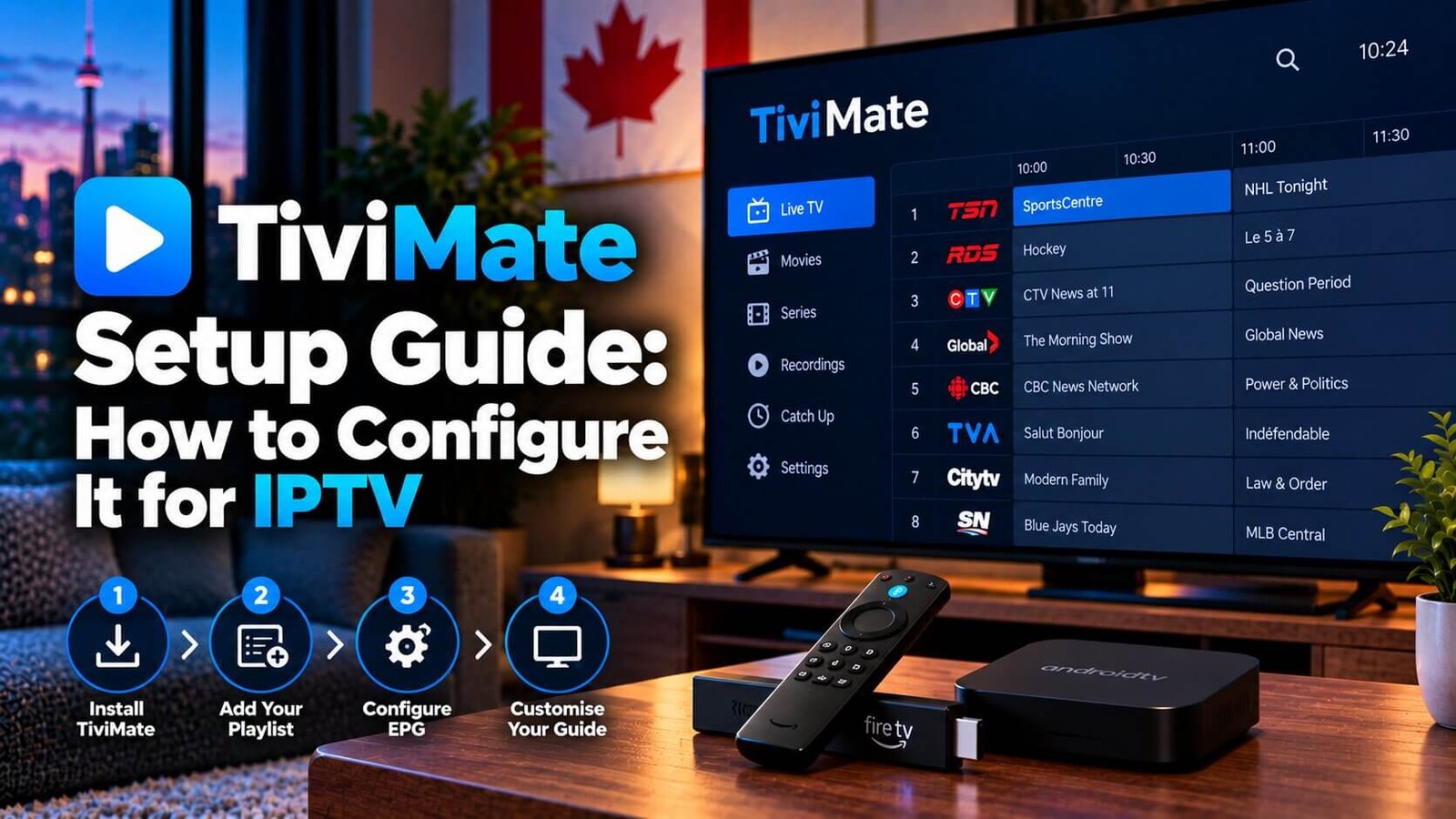
TiviMate is one of the more popular IPTV player apps for Android-based devices, known mainly for its customizable channel-guide layout and more advanced playback controls than many default apps offer. If you searched for “tivimate iptv player” because you are trying to decide whether to use it, or you have already installed it and are not sure what to do next, this guide covers the free-versus-premium question honestly and walks through adding your own subscription.
TiviMate IPTV Player: Free vs Premium Features
TiviMate is available in a free tier and a paid premium tier, and the distinction matters before you commit to either. The free version generally covers the core functionality most people need: adding a playlist or Xtream Codes login, browsing channels and using a basic channel guide. The premium tier typically unlocks additional customization options, such as more advanced EPG layouts, multi-screen or picture-in-picture viewing, and a few other convenience features that are not essential to simply watching your subscription, but which some users find worthwhile for a nicer day-to-day experience. Because third-party app pricing and feature lists can change over time, it is worth checking TiviMate’s own current listing for the exact up-to-date pricing and feature breakdown before deciding whether premium is worth it for you.
Installing TiviMate on Firestick and Android Boxes
TiviMate can be installed on Firestick and most Android TV boxes, typically either through the Amazon Appstore or Google Play Store where available, or by sideloading an installation file using a companion sideloading tool where a direct store listing is not available for your specific device. Once installed, TiviMate appears on your home screen like any other app, and opening it for the first time will present a setup screen asking you to add a new playlist.
The installation steps differ slightly depending on your device. On Firestick, sideloading generally requires enabling apps from unknown sources first, similar to the process used for other IPTV player apps, then using a companion sideloading tool to install the file. On a generic Android TV box, a direct Play Store listing is more commonly available, though sideloading remains an option there as well if a listing is not available in your box’s specific storefront. Either way, TiviMate’s own on-screen setup wizard walks through the remaining steps once the app itself is installed.
Adding Your Playlist and EPG Source
When TiviMate first opens, you will be prompted to add a playlist, which is where your IPTV subscription details come in. Depending on the format your provider supplied, you can typically enter either a single M3U playlist URL or separate Xtream Codes fields for the server address, username and password. Many providers also supply a separate EPG (electronic program guide) source URL, which, if entered correctly, allows TiviMate to display program titles and times alongside each channel rather than just a bare channel list.
Customizing the Channel Guide Layout
One of the reasons TiviMate is popular is its flexible channel-guide layout, which can usually be adjusted between a few different grid and list styles from within the app’s own settings menu. If your channels are not organized the way you would like, most versions of TiviMate also allow creating custom channel groups or favourites lists, which can make navigating a large channel package considerably easier than scrolling through one long default list.
Managing Your Playlist and Subscription Details Over Time
If your provider ever issues a new playlist link or new Xtream Codes details, for example after a subscription renewal, TiviMate allows editing an existing playlist’s login information directly from its settings menu rather than requiring you to delete and recreate the whole setup from scratch. This is a useful detail to know, since re-entering every custom channel group and favourite you have configured would be an unnecessary amount of repeated work if it could be avoided simply by updating the login fields.
It is also worth checking periodically for TiviMate app updates through whichever store or installation method you originally used. Developers release updates to address bugs, improve compatibility with newer Fire OS or Android versions, and sometimes adjust the EPG or guide layout based on user feedback, so staying reasonably current with updates can help avoid playback or display issues that were not present when you first installed the app.
Troubleshooting Common TiviMate Playback Issues
If channels load but playback stutters or the app feels sluggish, a few common causes are worth checking before assuming something is wrong with your subscription. Confirm your internet connection speed with a simple test, since TiviMate’s more detailed guide layout and buffering options can be slightly more demanding on an older or lower-powered device than a very basic player app. Restarting the app, and in some cases restarting the Firestick or Android box itself, clears temporary memory and often resolves minor slowdowns that build up during a long viewing session. If a specific channel repeatedly fails to load while others play normally, the issue is more likely to sit with that individual stream than with TiviMate or your device.
Another occasionally overlooked cause is a device running low on available storage, which can affect how smoothly any app, including TiviMate, performs regardless of the app’s own settings. Checking your device’s available storage under its general settings menu, and removing unused apps if space is limited, is a reasonable general maintenance step worth considering if playback issues appear gradually rather than suddenly.
Managing Multiple Profiles
Some versions of TiviMate support setting up more than one profile, each with its own favourites and channel-group arrangement, which can be useful in households where different family members prefer different channel groupings or guide layouts. Setting up a separate profile does not require a separate subscription or additional login details; it simply changes how the existing channel list is organized and displayed for that particular profile.
Frequently Asked Questions
Do I need TiviMate Premium to use my IPTV subscription?
No. The free version of TiviMate supports adding a playlist or Xtream Codes login and browsing channels; premium mainly adds extra customization and convenience features rather than being required for basic playback.
Can TiviMate be installed directly from the Play Store?
On many Android TV boxes, yes, though availability can vary by device and region. Where a direct listing is not available, sideloading an installation file is a common alternative.
Why does my EPG show no data in TiviMate?
This is usually caused by a missing or incorrectly entered EPG source URL, rather than a fault with TiviMate itself. Double-checking that the EPG URL was entered exactly as supplied by your provider, without extra spaces or missing characters, resolves this in most cases.
If TiviMate does not feel like the right fit after trying it, our IPTV apps comparison covers other options side by side, and our Installation Guide covers general setup steps that apply across most player apps.
Whichever player app you settle on, the underlying subscription and channel package remain the same; the app itself mainly changes how the channels and guide are presented and how much you can customize the day-to-day viewing experience. Testing TiviMate against another app during a free trial period, before committing to one setup long-term, is a reasonable way to decide which interface genuinely suits how your household watches television.
For an additional authoritative reference related to this topic, see TiviMate on Google Play.
Ready to test this on your own setup?
Review the Installation Guide for your device, then use the free trial to check the experience on your own connection before choosing a plan.