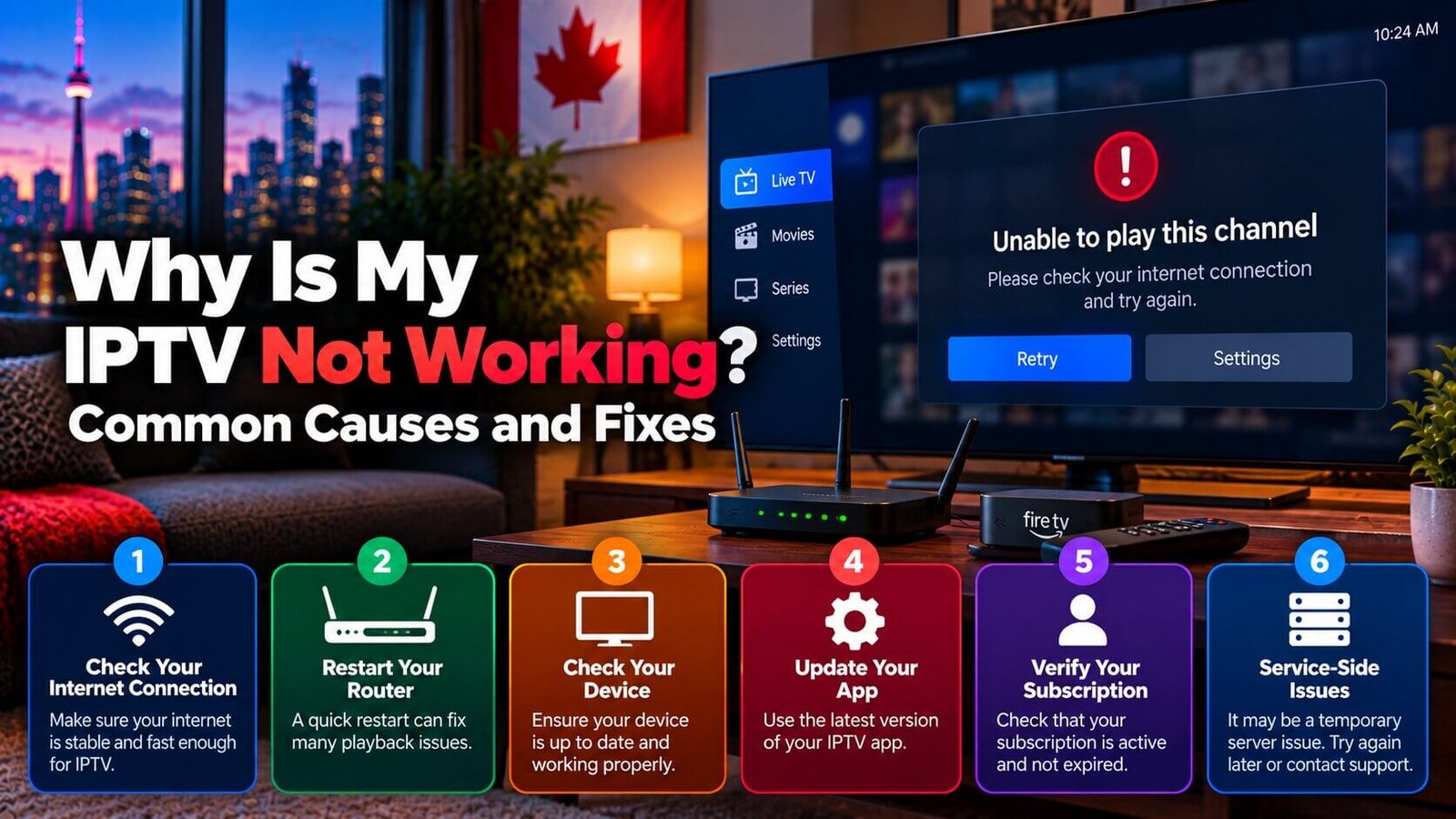
If you searched for “IPTV not working,” a frozen or blank screen is probably what brought you here, and it helps to work through the possible causes in a specific order rather than guessing randomly. Playback problems can come from your internet connection, your device, the app itself, or your subscription status, and checking them in the right sequence usually narrows down the cause faster than trying random fixes.
IPTV Not Working? Step 1: Test Your Internet Speed
Because IPTV streams content over your internet connection rather than through a dedicated cable line, a slow or unstable connection is one of the most common causes of buffering, freezing or channels failing to load. Running a basic internet speed test on the same network your streaming device uses is a reasonable first step, ideally at the same time of day you normally experience the problem, since some households see slower speeds during peak evening hours.
If your speed test results are noticeably lower than what your internet plan promises, or if other devices on the same network are also struggling, the issue may be with your home network rather than the IPTV app or subscription itself. Switching from Wi-Fi to a wired Ethernet connection, where possible, often provides a more stable connection for live streaming.
Step 2: Restart Your Device and Router
When IPTV is not working, a simple restart is one of the quickest low-risk checks, because it clears temporary memory and cache that can build up over time on both your streaming device and your home router. Turning off your streaming device completely, waiting a few seconds, and turning it back on is a quick step worth trying before moving on to more complex troubleshooting.
The same applies to your router: unplugging it for about thirty seconds and plugging it back in can resolve connectivity hiccups that a simple device restart alone does not fix. This step costs nothing and takes only a few minutes, which is why it is generally recommended early in any troubleshooting sequence rather than as a last resort.
Step 3: Check for App or Firmware Updates
Outdated software, whether it is the IPTV player app itself or the firmware running on your streaming device or smart TV, can sometimes cause playback errors that a newer version has already fixed. Checking your device’s app store or system settings for available updates is worth doing periodically, not only when something goes wrong.
If an update is available, install it and restart the device afterward before testing playback again. Keep in mind that update availability and release schedules are controlled by each app’s own developer or device manufacturer, not by your IPTV subscription, so timing can vary between different apps and devices.
Step 4: Confirm Your Subscription Is Still Active
Sometimes a playback problem has nothing to do with your internet, device or app at all, and instead reflects an expired or paused subscription. Before assuming a technical fault, it is worth confirming that your subscription is currently active, since an expired subscription can produce symptoms that look identical to a technical error, such as channels failing to load or a blank playback screen.
If you are not sure whether your subscription is active, checking your account confirmation email or contacting support directly is more reliable than guessing based on the symptoms alone, since the two situations can look very similar from the viewer’s side.
Is the Problem Affecting One App or Every App?
Before going further, it helps to notice whether the problem is limited to a single app or channel, or whether every app on your device is affected at the same time. If only one specific app or channel is having trouble while everything else on the same device streams normally, the cause is more likely to sit with that particular app or channel rather than with your general internet connection or device.
On the other hand, if every app on the device struggles at the same time, including apps unrelated to IPTV, this points more strongly toward your internet connection, your device’s overall performance, or your router, rather than any single app. Testing a second app or a second device on the same network, where possible, is a useful way to narrow this down further before assuming the fault lies with one specific app.
When the Problem Is Outside Your Control
Not every playback issue can be resolved by the steps above. Occasionally, a problem originates on the server or content-delivery side of a service, meaning it is outside what a viewer’s own device, app or internet connection can fix. In these cases, other subscribers may be experiencing the same issue at the same time, and the fix depends on the service provider rather than on anything you change at home.
If IPTV is not working after you have worked through the internet, device, app and subscription checks above, reaching out to support with specific details, such as when the issue started and which channels or apps are affected, helps identify whether the cause is something you can fix yourself or something that needs to be addressed elsewhere. Providing this level of detail upfront generally leads to a faster resolution than a general description of “it is not working,” since it lets support skip straight to the checks that are actually relevant to your situation.
It is also worth keeping in mind that IPTV, as a delivery method, depends on several layers working correctly at once: your home network, your streaming device, the player app, and the underlying subscription service. A fault at any one of these layers can produce very similar symptoms on screen, which is exactly why working through the checks above in order, rather than jumping straight to the least likely cause, tends to save the most time when your IPTV is not working as expected.
Frequently Asked Questions
Is slow internet the most common cause of IPTV problems?
Internet speed and stability are frequent contributors to buffering and freezing, but they are not the only possible cause. Device performance, outdated apps, and subscription status can all produce similar symptoms, which is why working through checks in order is more reliable than assuming any single cause.
Should I restart my router before contacting support?
Yes, restarting both your streaming device and your router is a quick, low-effort step worth trying first, since it resolves a meaningful share of temporary connectivity issues without needing further troubleshooting or a support conversation.
How can I tell if my subscription has expired versus a technical fault?
The symptoms can look identical from the viewer’s side, since both a technical fault and an expired subscription can cause channels to fail to load. Checking your account confirmation email or contacting support directly is a more reliable way to confirm your subscription status than judging from playback symptoms alone.
Does the time of day affect IPTV performance?
It can, for some households. Internet congestion during peak evening hours, when many people in the same area are streaming at once, can occasionally affect playback quality regardless of the app or device used. If problems tend to happen mostly in the evening and clear up at other times, this may point toward general network congestion rather than a fault with your specific setup.
Still stuck after trying these steps? Reach out to our team on WhatsApp and we will help you pinpoint the cause, or check the FAQ and Installation Guide pages for related setup questions.
For an additional authoritative reference related to this topic, see FAST internet speed test.
Still need help with your setup?
If the issue continues after the checks above, use our contact page and include your device, app and exact error details. You can also review the Installation Guide for device-specific setup guidance.