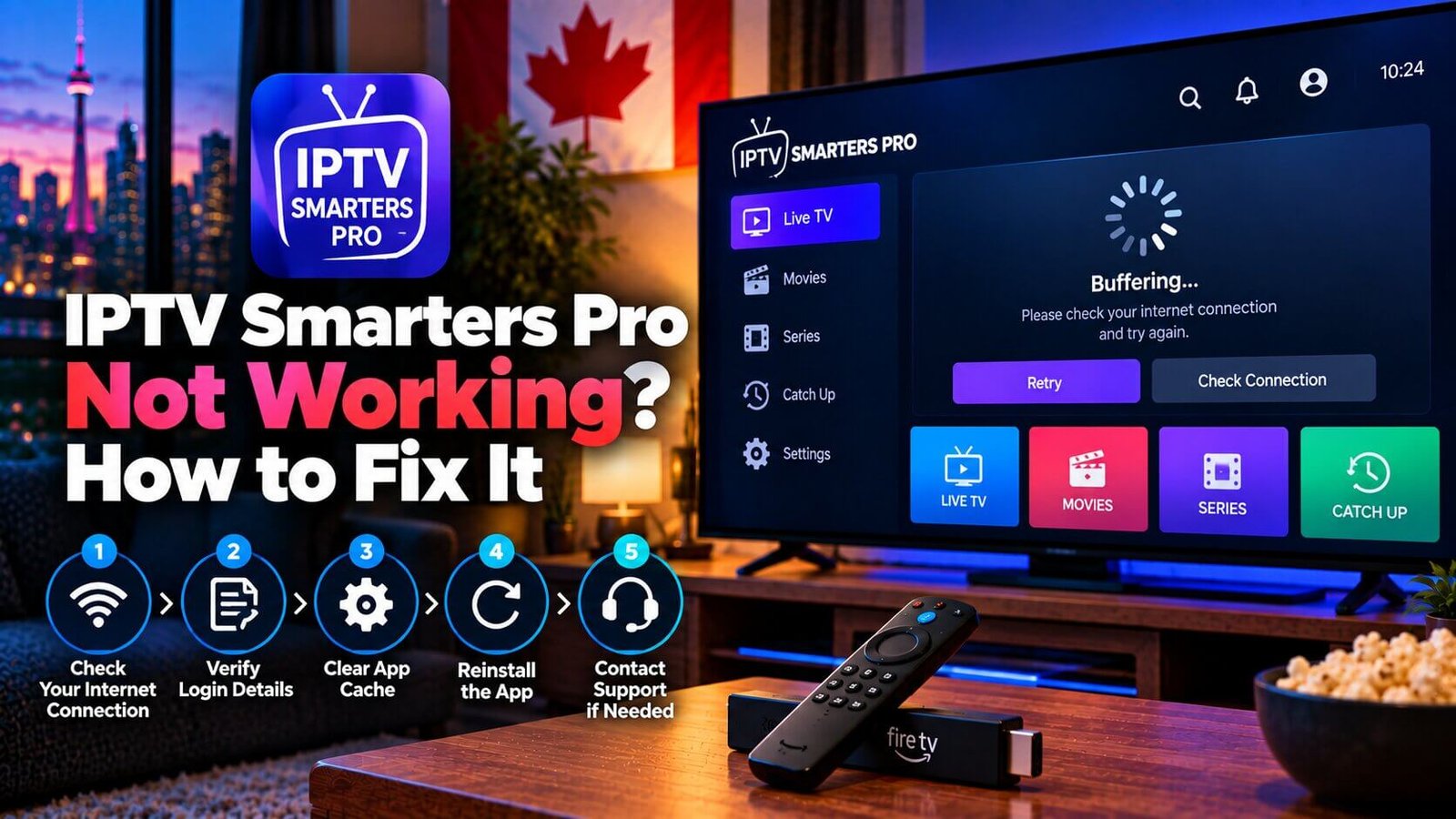
IPTV Smarters Pro not working usually comes down to one of a small handful of causes: the internet connection, the playlist or Xtream Codes details, a stuck app cache, or an outdated app version. This checklist works through those causes in the order they trip up most Canadian subscribers, starting with the simplest check first, so you are not guessing which step actually matters.
Work through each section below in order rather than skipping ahead. Most errors resolve at one of the first three steps; the later steps exist for the smaller number of cases that need a fuller reset or a conversation with support.
IPTV Smarters Pro Not Working? Check Your Internet First
Before touching any setting inside IPTV Smarters Pro itself, confirm the device is actually online and that the connection is stable rather than just present. A device can show a Wi-Fi icon while still struggling with a weak or congested signal, which produces exactly the same symptoms as a genuine app problem: buffering, a stalled loading screen, or channels that never finish loading.
Restart the router and the streaming device, then try loading a channel again once both have fully restarted. If a wired Ethernet connection is available for the device, it can reduce the kind of intermittent Wi-Fi drops that Wi-Fi alone does not always avoid, though it does not guarantee a fix on its own. Testing at a different time of day is also worth doing, since evenings are when most households on a shared connection are online at once, which can affect overall stability even when a speed test looks fine at another moment.
If channels play smoothly on one device but not another on the same network, the issue is more likely tied to that specific device or its installation of the app rather than the connection itself. Note which devices are affected before moving to the next step, since that detail is useful if you eventually need to contact support.
Confirm Your Playlist or Xtream Codes Details Are Correct
If the connection is stable and IPTV Smarters Pro is still not working, the next most common cause is a small error in the playlist link or Xtream Codes login (server address, username and password). A single extra space, a missing character, or a mistyped digit in the server address is enough to produce a “no streams available” message or a completely empty channel list.
Open the app’s settings and compare each field character by character against the original details you were given, ideally by copying and pasting rather than retyping from memory. If the details were sent in a message or email, copy directly from that source rather than typing what you remember, since server addresses in particular can look very similar to each other at a glance. Watch for autocorrect changes if you typed the details manually on a phone, since a single altered character breaks the connection just as easily as a typo.
If you recently changed devices or reinstalled the app, double-check that the full set of details was re-entered rather than partially copied. A playlist URL alone will not work where the app expects separate server, username and password fields, and the reverse is also true.
Clear the App Cache and Restart
IPTV Smarters Pro, like most streaming apps, stores temporary data to speed up future loading. Occasionally that stored data becomes corrupted or outdated, especially right after an app update, and clearing it forces the app to rebuild everything from scratch on the next launch.
On most Android-based devices and Firestick, this option is found under the device’s own app settings rather than inside IPTV Smarters Pro itself: locate the app in the device’s settings menu and look for a “Clear Cache” option, separate from “Clear Data,” which would remove your saved login details as well. Exact menu wording and navigation steps can vary by device brand, operating system version and app version, so use this as a general path rather than an exact match for every device.
After clearing the cache, fully close and reopen the app rather than simply returning to the home screen, since a background instance of the app may still be holding the old cached data. Give the app a minute to reload the playlist and EPG from scratch before assuming the clear did not work; a full reload can take longer than the app’s normal startup time.
Reinstall the App as a Last Resort
If clearing the cache does not resolve the issue, a full reinstall is the next step. Uninstall IPTV Smarters Pro, restart the device, and then reinstall the app from the appropriate app store for your device, keeping in mind that exact availability, version and features can vary by platform, country and app-store listing.
Reinstalling the app does not change or reset your subscription in any way. Your playlist link or Xtream Codes login remains exactly the same, so keep those details on hand to re-enter them once the fresh install finishes. This step fixes problems with the app installation itself; it does not affect whether your subscription is active, and it will not resolve an issue that is actually caused by an expired subscription or a connection problem further upstream.
When to Contact Support
If the connection tests clean, the login details are confirmed correct, the cache has been cleared, and the app has been reinstalled without success, the remaining causes are usually outside what a reader can diagnose alone: a paused or expired subscription, a temporary issue on the source side, or an ISP-level restriction that is separate from the app itself. None of the previous steps can rule out these causes, since they do not depend on anything stored on the device.
At that point, contacting support directly is more useful than repeating the same steps again. Have the exact error message, the device model, and the app version ready before reaching out, since that information helps identify the cause much faster than a general description such as “it is not working.” A screenshot of the exact error screen is one of the most useful things you can send, since wording can point to a different cause than a similar-looking error with different text.
Not every cause can be fixed from the app itself; some are ISP-side or tied to the subscription rather than to IPTV Smarters Pro, so a fix is not guaranteed at every step of this checklist. Working through the steps in order still resolves the large majority of cases before support involvement is needed.
Frequently Asked Questions
Why does IPTV Smarters Pro say “no streams available”?
This message almost always points to an incorrect playlist link or Xtream Codes login, or a connection that dropped while the app was loading. Recheck every field against the original details, confirm the internet connection is stable, and try reloading. If the message persists after a careful recheck, confirm with support that the subscription itself is still active, since an expired or paused subscription can produce the exact same message as a typo.
Why did my channels stop working after an app update?
App updates occasionally change stored settings or leave behind an outdated cache that no longer matches the new version. Clearing the app’s cache and restarting it is the first step to try after any update; if that does not help, a full reinstall usually resolves issues tied specifically to an update rather than to the subscription itself.
How do I clear the cache on IPTV Smarters Pro?
On most Android-based devices and Firestick, open the device’s own settings menu, find IPTV Smarters Pro in the list of installed apps, and choose “Clear Cache” rather than “Clear Data,” which would also remove your saved login details. Exact menu wording and steps can vary slightly by device brand and operating system version, so check your device’s own settings layout if these steps do not match exactly.
If IPTV Smarters Pro is not working after all of these steps, message our support team on WhatsApp with a screenshot of the error so the cause can be identified faster. For a full first-time walkthrough of setting up the app correctly, see our IPTV Smarters Pro setup guide, and check the Installation Guide for steps specific to your device.
For an additional authoritative reference related to this topic, see IPTV Smarters official website.
Still need help with your setup?
If the issue continues after the checks above, use our contact page and include your device, app and exact error details. You can also review the Installation Guide for device-specific setup guidance.