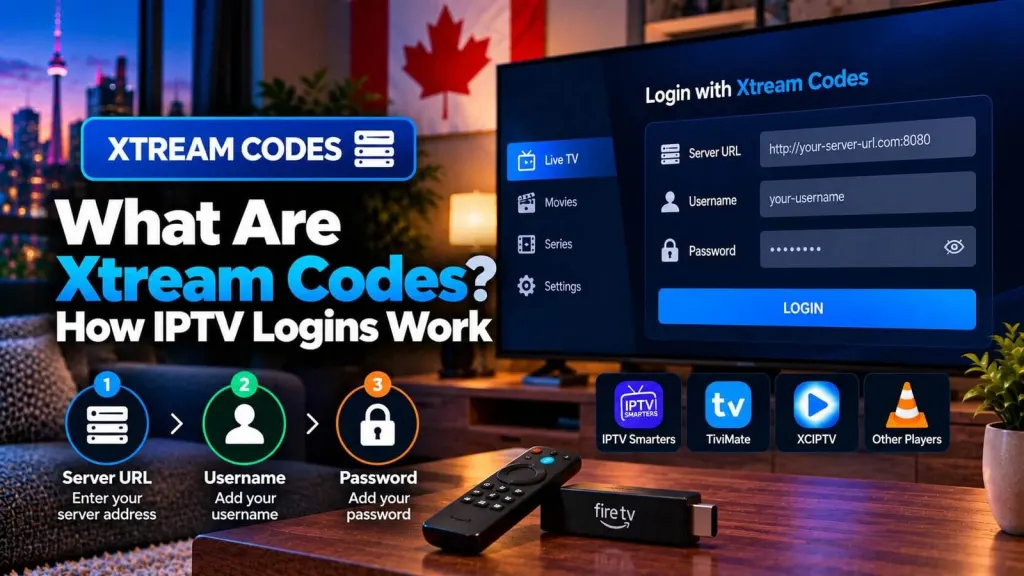
If you have started setting up an IPTV player app and been asked for “xtream codes” instead of a simple link, it is easy to assume something has gone wrong or that you are missing information. In most cases, nothing is wrong: this is simply a common login format used by many IPTV player apps, made up of a server address, a username and a password rather than one single playlist link. This guide explains what those fields mean, where to find them, and what to do if they stop working.
Xtream Codes: What This Login Format Actually Is
This particular login format was originally associated with a specific piece of panel software once widely used to manage IPTV subscriptions, and the name has since stuck around as the common term for this style of three-field login, even on services that use entirely different backend software today. When a player app asks for a server address, a username and a password rather than a single link, it is usually asking for an Xtream Codes-style login, regardless of which specific software your provider actually runs behind the scenes.
How This Differs From M3U: What Is the Difference
IPTV subscriptions are typically delivered in one of two common login formats. An M3U playlist is a single link that, once pasted into a player app, tells the app where to find the full channel list in one step. The three-field format covered in this article, by contrast, splits that same underlying information into a server URL, a username and a password, which the app combines behind the scenes to load your channels. Neither format is inherently better than the other; they are simply two different ways of supplying the same type of login information, and which one you use usually depends on what your provider issued and which fields your chosen player app asks for.
Where Do I Find My Server URL, Username and Password
These details are supplied directly by your IPTV provider at the time you subscribe, typically delivered by email or through a support channel such as WhatsApp. If you have misplaced them, they are not something you can look up or generate yourself; contacting your provider’s support team directly is the appropriate way to have them resent or reconfirmed, rather than searching for a generic or shared set of credentials online. Using a shared or unofficial set of login details found outside your own subscription is not something this guide covers or recommends, since it falls outside a legitimate, provider-issued login.
Entering the Details in a Player App
Most player apps that support Xtream Codes will present three separate input fields, usually labelled something like “Server,” “Username” and “Password,” during the initial setup or when adding a new playlist. Entering each detail carefully, without extra spaces before or after the text, matters more than it might seem, since a single stray character in any of the three fields is one of the most common reasons an otherwise-correct login fails to connect on the first attempt. Some apps display a fourth, optional field for a specific port number, which your provider will supply only if it is required; leaving it blank is usually correct unless you were told otherwise.
Common Login Mistakes to Avoid
A handful of avoidable mistakes account for most failed connection attempts. Copying a server address with a trailing slash or extra character attached, entering the username or password with different capitalization than supplied, and mixing up which field goes where are all common and easy to fix once identified. Retyping each field slowly and comparing it character by character against the original message from your provider is a more reliable troubleshooting step than assuming the app itself is at fault.
What to Do if Your Login Details Stop Working
If details that previously worked suddenly stop connecting, a few possibilities are worth checking before assuming something is broken on your end. Double-check that none of the three fields were accidentally edited or retyped incorrectly, confirm your internet connection is working normally, and consider whether your subscription’s renewal date may have recently passed. If everything appears correct and the login still fails, reaching out to your provider’s support team is the most reliable way to confirm whether the issue is account-related or a temporary server-side problem, rather than continuing to retype the same details repeatedly.
Frequently Asked Questions
Is this a company I subscribe to separately?
No. In modern player app interfaces, the term commonly describes this three-field server URL, username and password login method, not a company. Historically, the same name was also associated with IPTV panel software once used by providers to manage subscriptions, which is part of why the term stuck around even as the underlying software has changed. Either way, you do not need to purchase a separate subscription under this name; your existing IPTV provider supplies login details in this format as part of the subscription you already have.
Why do some apps ask for a URL instead of these three fields?
Some player apps are built to accept an M3U playlist link instead of, or in addition to, this three-field format. Both formats can deliver the same channel list; the app you choose determines which one you will be asked to enter.
What should I do if my login is rejected?
First, re-check each field carefully for typos or extra spaces. If the details still do not work, our support team can help confirm whether the issue is with your account or a temporary connection problem before your trial ends.
For a walkthrough of exactly where these fields are entered inside one widely used app, see our IPTV Smarters Pro setup guide, or start with our Installation Guide for general setup steps that apply across most player apps.
For an additional authoritative reference related to this topic, see Xtream Codes background reference.
Ready to test this on your own setup?
Review the Installation Guide for your device, then use the free trial to check the experience on your own connection before choosing a plan.