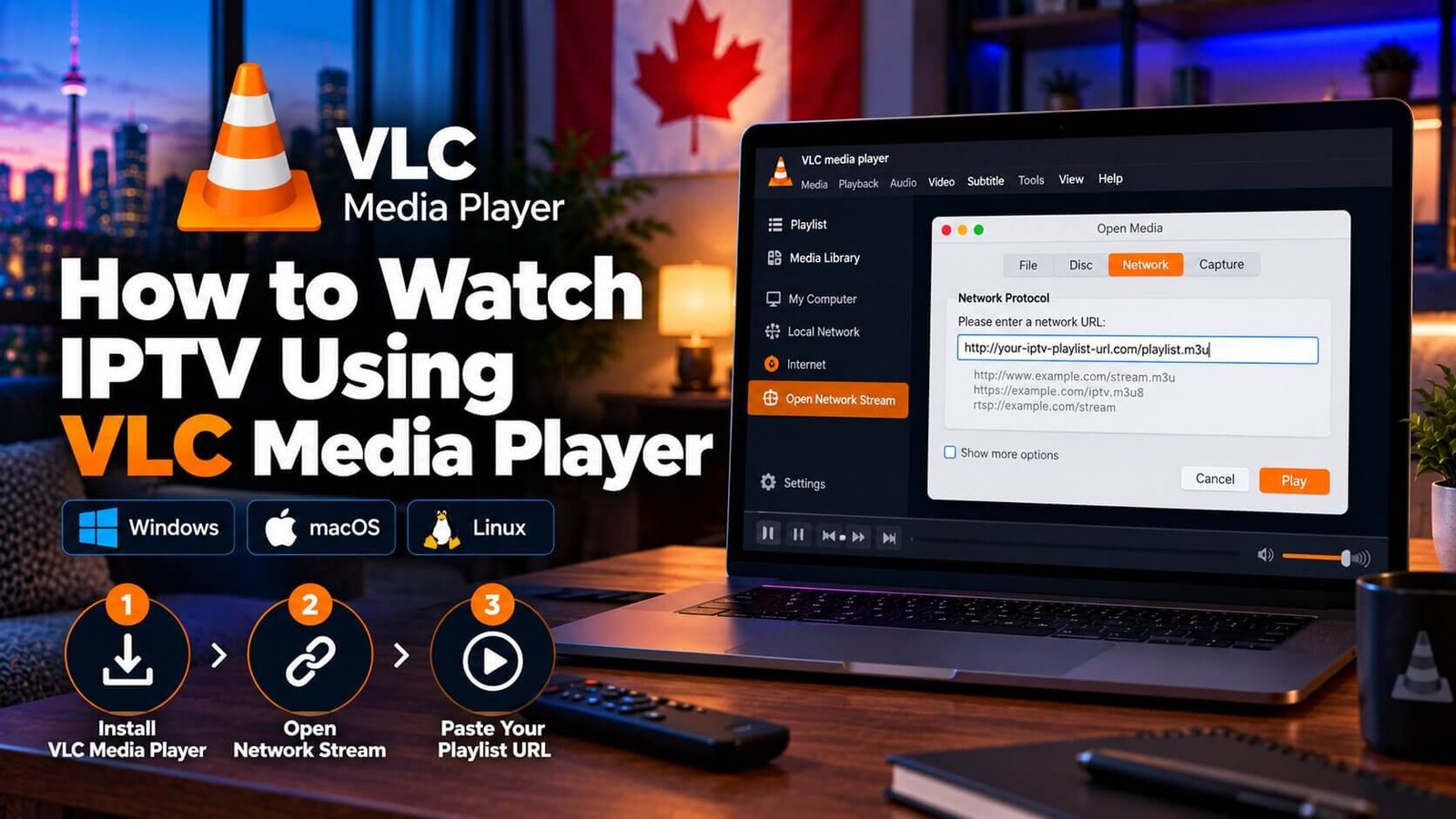
Many people already have VLC installed on their computer for playing local video files, and do not realize the same free application can also work as an iptv vlc media player for an existing subscription, without installing a separate dedicated app first. This guide explains how to open a live stream in VLC, add your playlist details, and where VLC’s limitations mean a dedicated player app may still be worth installing later.
IPTV VLC Media Player: Why Use VLC for IPTV?
VLC is free, open-source software that many subscribers already trust from watching downloaded video files, and it also supports opening a network stream directly, which is the basis for using it with an IPTV playlist. Because it requires no separate account or installation beyond VLC itself, it is a convenient way to quickly test whether a playlist is working, particularly if you are troubleshooting an issue or trying a subscription for the first time before deciding on a longer-term app.
VLC is not a dedicated IPTV app, however, and does not include features such as a polished on-screen channel guide or a saved favourites list in the same way many purpose-built player apps do, so it is generally better suited to testing and backup use than as a daily-driver interface.
VLC is also available on more than just desktop and laptop computers; versions exist for some mobile devices and select smart TV platforms as well, though the interface, menu wording and available features can vary noticeably between these versions. This guide focuses on the desktop version of VLC, which is the most consistent and widely documented way to open an IPTV stream.
Step 1: Open a Network Stream in VLC
After opening VLC, look for a menu option along the lines of “Open Network Stream” or “Open Network,” typically found under VLC’s Media or File menu, depending on your operating system and VLC version. Selecting this option brings up a field for entering a URL rather than browsing for a local file, which is where your playlist information will be entered in the next step.
VLC’s menu wording can vary slightly between versions and operating systems, so if the exact option name does not match what is described here, checking VLC’s own current help documentation for your specific version is a reasonable next step.
If you cannot locate a network-stream option at all, confirming that you are using the full desktop version of VLC, rather than a simplified mobile build, is worth checking first, since some mobile versions organize this feature differently or label it in a less obvious place within the app’s menus.
Step 2: Paste Your Playlist URL
Once the network stream dialog is open, paste in the M3U playlist URL supplied by your IPTV provider, then confirm or play to begin loading your subscription’s channel list. If nothing loads, double-checking for extra spaces or a partially copied URL is a reasonable first troubleshooting step before assuming the playlist itself is faulty.
Unlike some dedicated player apps, VLC generally does not organize an M3U playlist into a searchable, categorized channel guide by default; depending on your playlist format and VLC version, you may see a more basic list of stream entries rather than a polished, categorized interface.
If playback stutters or buffers repeatedly after loading, this is more often related to your internet connection speed or your provider’s server load at that moment than to VLC itself, since VLC is simply displaying the stream rather than altering how it is delivered. Trying the same playlist at a different time of day, or on a different network, can help narrow down whether the issue is on your end or your provider’s.
Limitations of VLC Compared to Dedicated IPTV Apps
VLC does not typically include an integrated electronic programme guide (EPG) in the same way many dedicated IPTV apps do, so you may not see programme titles and times alongside your channel list without additional configuration, if that is even supported in your particular VLC version. It also generally lacks features such as saved favourites, parental-control PIN settings, or a purpose-built remote-friendly interface designed for a TV screen rather than a desktop or laptop.
For these reasons, VLC is best treated as a convenient way to test a playlist or as an occasional backup option, rather than a full replacement for a dedicated player app such as IPTV Smarters Pro or TiviMate, covered in our other setup guides, for day-to-day viewing. If you are specifically using a Windows computer, our dedicated guide to IPTV player apps for Windows covers purpose-built options that may suit daily use better than VLC once you have confirmed your playlist works.
Frequently Asked Questions
Is VLC a good permanent option for watching IPTV?
VLC can work as an occasional or backup option, but it generally lacks features such as an integrated programme guide and saved favourites that many dedicated player apps include, so most subscribers prefer a purpose-built app for regular daily use.
Does VLC support an EPG (TV guide) for IPTV?
VLC does not typically display an integrated on-screen programme guide the way many dedicated IPTV apps do; support can vary by version, so checking your specific VLC version’s current documentation is the most reliable way to confirm what is available.
Can I use VLC on a Smart TV as well as a computer?
VLC is available on some smart TV platforms as well as computers, though its interface and available features can vary significantly by platform and version; checking your specific TV’s app store for a current VLC listing is the most reliable way to confirm availability.
If you decide you want a more dedicated IPTV interface after testing your playlist in VLC, our comparison of IPTV player apps covers several alternatives, and our Installation Guide outlines general setup requirements across most devices.
For an additional authoritative reference related to this topic, see VideoLAN VLC official website.
Ready to test this on your own setup?
Review the Installation Guide for your device, then use the free trial to check the experience on your own connection before choosing a plan.