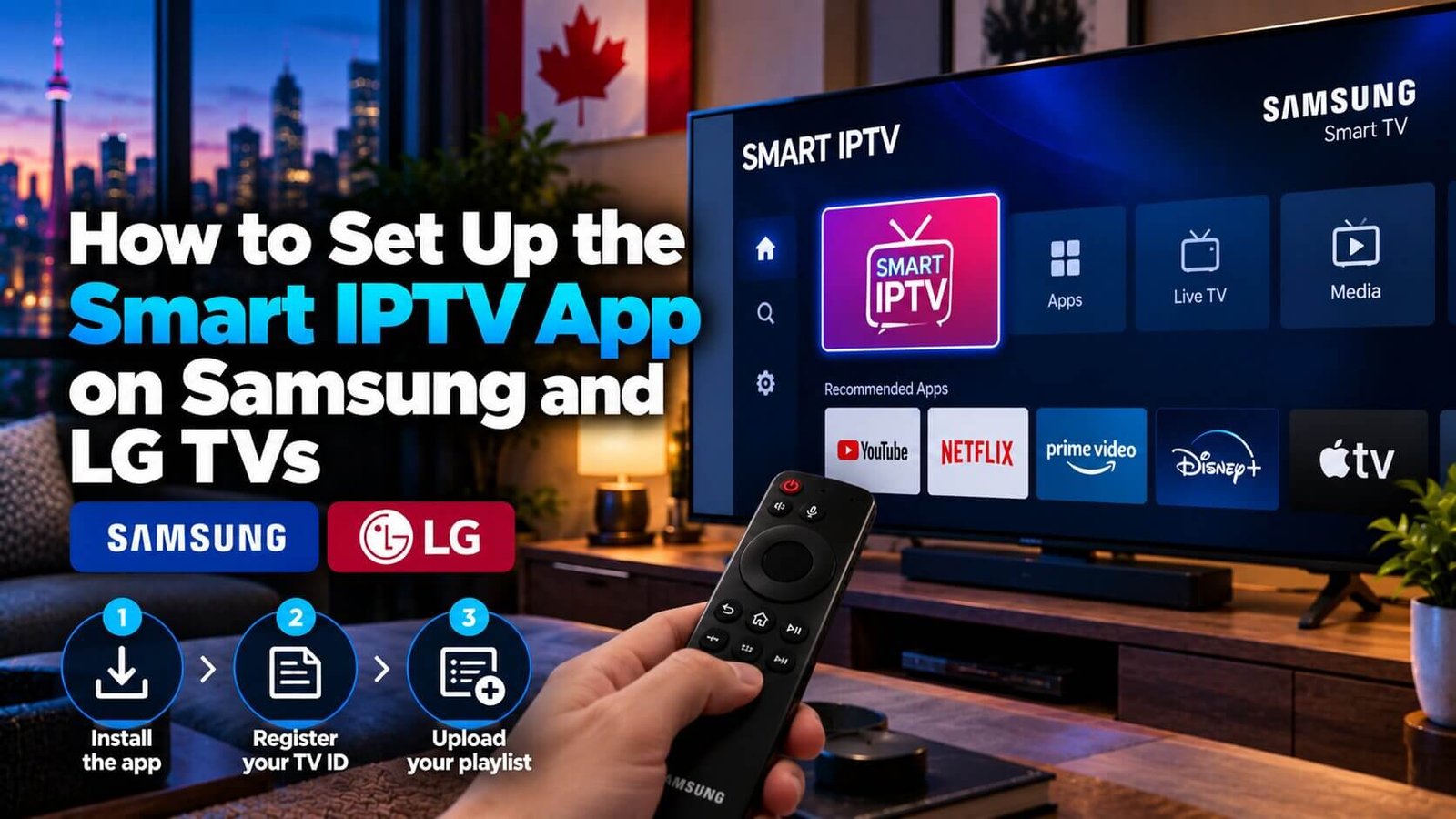
Samsung and LG smart TVs use a different operating system from Android-based streaming boxes, so IPTV player apps built primarily for Android, such as IPTV Smarters Pro or TiviMate, may not appear in the Samsung or LG app store at all, or may behave differently where they are available. Many Samsung and LG smart TV owners instead use a dedicated app built for these TV operating systems, commonly known by the search term “smart iptv.” Exact availability can vary by TV model, operating-system version, country and app-store region, so this guide explains the general installation, registration and troubleshooting process and notes where checking your own TV’s app store is the most reliable way to confirm details.
Smart IPTV: Why Samsung and LG TVs Use a Different Setup
Samsung’s Tizen operating system and LG’s webOS are built differently from Android TV, which means many Android-focused IPTV player apps are not listed in the Samsung or LG app store, or may not run the same way where they are. Rather than trying to force an incompatible app onto these TVs, a more reliable approach for many users is to use an app built specifically for Tizen and webOS. This particular app was developed with this kind of compatibility gap in mind, which is one reason it has become a commonly used option for Samsung and LG smart TV owners who want to watch an IPTV subscription without buying a separate streaming box.
It is worth understanding this distinction before you start, since it explains why a setup guide written for a Firestick or Android box will not directly apply here. On Tizen and webOS, apps are distributed and sandboxed differently, and Samsung and LG have historically been more restrictive about which third-party apps are allowed into their respective app stores. The app covered in this guide exists specifically to work within those restrictions, using a registration method rather than a typical direct-login screen.
Step 1: Install the App from Your TV’s App Store
Availability varies by TV model, operating-system version, country and app-store region, so start by searching for the app by name directly within your Samsung Smart Hub or LG Content Store. If it does not appear in your specific store, check your TV manufacturer’s current app listings, or your IPTV provider’s own installation instructions, for the correct installation method for your model. On versions of the app that use MAC-address activation, opening it for the first time will typically display a unique MAC address associated specifically with your television, along with a short explanation that this address needs to be registered separately on a companion website before channels will appear.
If a search inside your TV’s app store does not immediately return a result, checking that your TV’s firmware is reasonably up to date can help, since older, unsupported firmware versions sometimes have a reduced or outdated app catalogue available through the built-in store.
Step 2: Register Your TV’s MAC Address
On the versions of this app that use MAC-address registration, the setup process works differently from many other player apps: rather than entering a playlist directly inside the TV app itself, you register your TV’s displayed MAC address on the app provider’s own website, then upload or link your playlist through that separate registration page. This MAC-address registration step is a standard part of how many versions of the app work and is not something unique or suspicious to your particular subscription; it is one mechanism used to tie a specific television to a specific playlist, since the TV app itself does not always include a typical username-and-password login screen. Check the instructions inside your own installed app version if what you see does not match this description.
Write down or photograph the MAC address shown on your TV screen before navigating away from it, since you will need to enter it exactly, character for character, on the registration website in the next step. A single mistyped character in the address is one of the more common reasons the registration does not take effect.
Step 3: Upload Your Playlist File
Once your TV’s MAC address is registered on the provider’s website, you can typically upload your M3U playlist file, or paste in a playlist URL if your provider supplied one, through that same registration page. After saving, return to the app on your television, and your channel list should populate shortly afterward. If channels do not appear immediately, giving the app a minute to sync, or restarting it once, is a reasonable first step before assuming something is wrong. Some registration pages also allow adding a separate EPG source URL alongside the playlist, which, when supplied by your provider, lets the on-screen guide display program titles and times rather than just a bare channel list.
What to Do if the App Shows a Blank Screen
A blank or empty channel screen after registration is usually caused by one of a few common issues rather than anything more serious: the MAC address registration not being fully completed, the playlist URL being entered with a typo, or the app simply needing more time to sync after a fresh registration. Restarting the app, and double-checking that the MAC address shown on your TV exactly matches what was registered on the website, resolves this in most cases. It is also worth confirming that your subscription itself is currently active, since an expired trial or subscription can produce the same blank-screen symptom as a genuine registration mistake, even though the underlying cause is completely different.
If you have recently reset your TV to factory settings, or replaced it with a new television, keep in mind that the MAC address will have changed, and any previous registration tied to your old TV’s address will no longer apply. In that situation, registering the new MAC address as if setting up for the first time is the correct approach, rather than trying to reuse the old registration.
It is also worth checking the app’s own version periodically, since Samsung and LG occasionally update their respective app stores in ways that can affect older app versions. An outdated app version is a less common but still possible cause of playback or loading problems, so updating to the current version through your TV’s app store when prompted is a reasonable general maintenance step, separate from anything related to your subscription itself.
Frequently Asked Questions
Why can’t I find IPTV Smarters Pro on my Samsung TV?
IPTV Smarters Pro is primarily built for Android-based devices, and its availability on Samsung’s Tizen operating system can vary or be limited depending on your region and app-store version. If you cannot find it in your Samsung TV’s app store, a dedicated Tizen/webOS app such as the one covered in this guide is a commonly used alternative — check your own TV’s app store listings to confirm what is currently available for your specific model.
What is a MAC address activation and is it safe?
It is a standard way of linking your specific television to your playlist through the provider’s registration website, rather than entering login details directly in the TV app. It is a normal part of how the app is designed to work, not a security risk specific to your subscription.
Does this app work on older Samsung or LG TV models?
Compatibility depends on your exact TV model, its operating-system version and your app-store region, and very old models with limited app-store access may have restrictions or reduced availability. Checking your specific TV model’s current app-store listing is the most reliable way to confirm compatibility before assuming it will, or will not, work.
If you are unsure which setup path applies to your specific TV model, our support team can help confirm the right steps, or you can compare this option against other IPTV player apps if you are considering a different device altogether. Our Installation Guide also covers general setup requirements that apply across most devices.
Once registration is complete and channels are loading normally, day-to-day use is generally straightforward, since the app behaves much like any other channel-guide interface from that point forward. The main difference from an Android-based player app is simply this initial registration step; ongoing playback, channel switching and using an EPG, where supplied, work in a broadly similar way once everything is correctly linked to your television.
For an additional authoritative reference related to this topic, see Smart IPTV official website.
Ready to test this on your own setup?
Review the Installation Guide for your device, then use the free trial to check the experience on your own connection before choosing a plan.