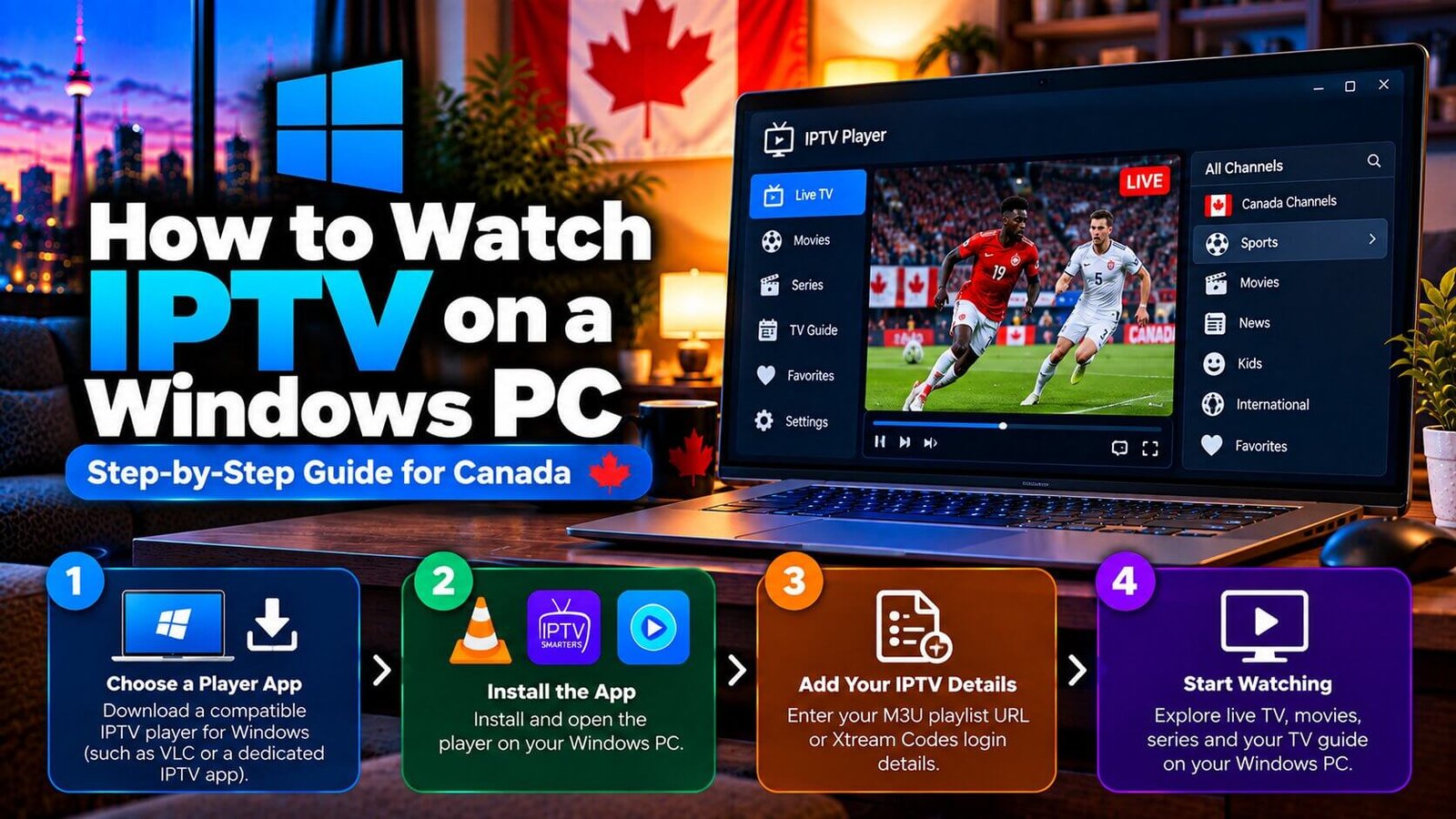
Many Canadian IPTV subscribers assume their subscription only works on a TV-connected device such as a Firestick, Android box or smart TV, but a dedicated iptv player for windows also lets you watch the same subscription on a desktop or laptop computer. This guide covers the realistic options for watching IPTV on a Windows PC, how to add your playlist or login details, and how a dedicated Windows player compares with using VLC as a simpler backup option.
IPTV Player for Windows: Can You Watch IPTV on a PC?
Yes, an IPTV player for Windows can play an IPTV subscription on a desktop or laptop, provided you install a compatible player app first; Windows does not provide a dedicated IPTV playlist interface by default. Several third-party windows iptv player options exist, ranging from dedicated apps built specifically for desktop use to general-purpose media players that also support network streams, such as VLC.
Because app availability and naming can change over time, checking the Microsoft Store or the developer’s own website for a currently maintained option is more reliable than assuming a specific app name will always be listed the same way.
Performance also depends on your computer itself; an older laptop with limited processing power may struggle more with high-definition streams than a newer desktop, regardless of which player app you choose. If you notice choppy playback, checking whether other demanding applications are running at the same time, and confirming your computer meets the player app’s stated minimum requirements, are reasonable first troubleshooting steps.
Choosing a Windows-Compatible Player App
When comparing options for the best player for iptv windows offers, consider whether an app is actively maintained, whether it clearly states support for M3U playlists or Xtream Codes-style logins, and whether its interface suits how you plan to watch, for example a simple channel list versus a more detailed on-screen guide. Some apps are distributed through the Microsoft Store, while others are downloaded directly from a developer’s website; either distribution method can be legitimate, but confirming the developer and checking recent reviews before installing anything is a reasonable precaution.
Screen size and viewing distance are also worth considering on Windows specifically, since a laptop or desktop monitor is typically viewed from much closer than a television. Some subscribers prefer a windowed view they can keep alongside other work, while others prefer maximizing the player to full screen for a more television-like experience; most Windows player apps support both options.
An iptv app for windows does not need to be complicated to be useful; for many subscribers, a straightforward app that reliably loads a playlist and displays a channel list is sufficient, without needing every feature a mobile or TV-based app might include.
Some antivirus or firewall software installed on Windows computers can occasionally flag a newly installed player app or block its network access by default, particularly for apps downloaded outside the Microsoft Store. If a freshly installed app fails to load any channels at all, checking your firewall or antivirus settings for a blocked-connection notification is a reasonable troubleshooting step before assuming the app or your playlist is faulty.
Adding Your Playlist or Xtream Codes Login
Once your IPTV player for Windows is installed, most apps ask for either a playlist URL (M3U) or a set of Xtream Codes-style login fields (server URL, username and password), depending on what your provider supplied. Entering these details exactly as provided, without extra spaces or characters, is usually enough to populate your channel list; a common early issue is a partially copied URL, which is worth checking first if nothing loads.
If your provider also supplies a separate EPG source URL, many Windows apps include a dedicated field for it, which, once added, can populate an on-screen programme guide rather than a bare channel list.
Most Windows player apps allow you to save these details so you do not need to re-enter your playlist or login information every time you open the app, though the exact wording for this option, such as “save profile” or “remember login,” varies between apps. Checking the app’s own settings menu for this feature after your first successful setup can save time on future use.
Windows Player vs VLC: Which Should You Use
VLC, covered in more detail in our separate VLC guide, is a free, general-purpose media player that can open an IPTV playlist directly without installing a dedicated IPTV app first, which makes it a convenient way to quickly test a playlist on a computer you already have. A dedicated iptv for windows app, by comparison, is generally built with more IPTV-specific features in mind, such as a more polished channel-guide layout or dedicated favourites and search functions, though this varies by app.
If you are simply testing whether a playlist works before committing to a specific setup, VLC is a reasonable starting point; if you plan to use your Windows PC as a regular way to watch IPTV going forward, a dedicated player app may offer a more comfortable day-to-day viewing experience.
Some subscribers use both: VLC for a fast initial check that a playlist is working correctly, and a dedicated app afterward for regular viewing, once they know the underlying subscription functions as expected. There is no requirement to choose only one approach permanently.
Frequently Asked Questions
Is there an official Windows app for IPTV players?
There is no single official app tied to IPTV as a technology; several third-party apps support Windows, and availability changes over time. Checking the Microsoft Store or a developer’s own website for a currently maintained option is the most reliable way to confirm what is available.
Do I need special hardware to watch IPTV on a laptop?
No special hardware is generally required beyond a reasonably current computer and a stable internet connection; playback performance can still vary with your computer’s age, its available processing power and your internet speed.
Is VLC a better option than a dedicated Windows player?
Neither is universally better; VLC is a simple, free way to test a playlist quickly, while a dedicated player app may offer more IPTV-specific features for regular daily use. Our VLC setup guide covers that option in more detail.
Why won’t my Windows player app load any channels?
This is usually related to your playlist details, your internet connection, or occasionally your firewall or antivirus software blocking the app’s network access, rather than a fault with Windows itself. Double-checking your playlist URL or login details for typos, and confirming the app has not been blocked by security software, are reasonable first troubleshooting steps.
Does my Windows computer need special specifications to watch IPTV?
No specialized hardware is generally required, though a relatively recent computer with a stable internet connection will generally provide smoother playback than an older machine, since decoding higher-quality video streams does use some processing power. A wired ethernet connection, where available, can also offer more consistent playback than Wi-Fi, particularly in larger homes or during peak internet usage hours.
If you regularly move between a laptop and a desktop, or between a home and an office network, testing your playlist on each setup individually is a reasonable precaution, since network conditions and firewall configurations can differ meaningfully between locations even when the same player app and playlist are used.
For general setup requirements that apply across most devices, our Installation Guide is a useful starting point, and you can start a free 24-hour trial to test your subscription on your own Windows computer before subscribing.
For an additional authoritative reference related to this topic, see Microsoft Windows Support.
Ready to test this on your own setup?
Review the Installation Guide for your device, then use the free trial to check the experience on your own connection before choosing a plan.