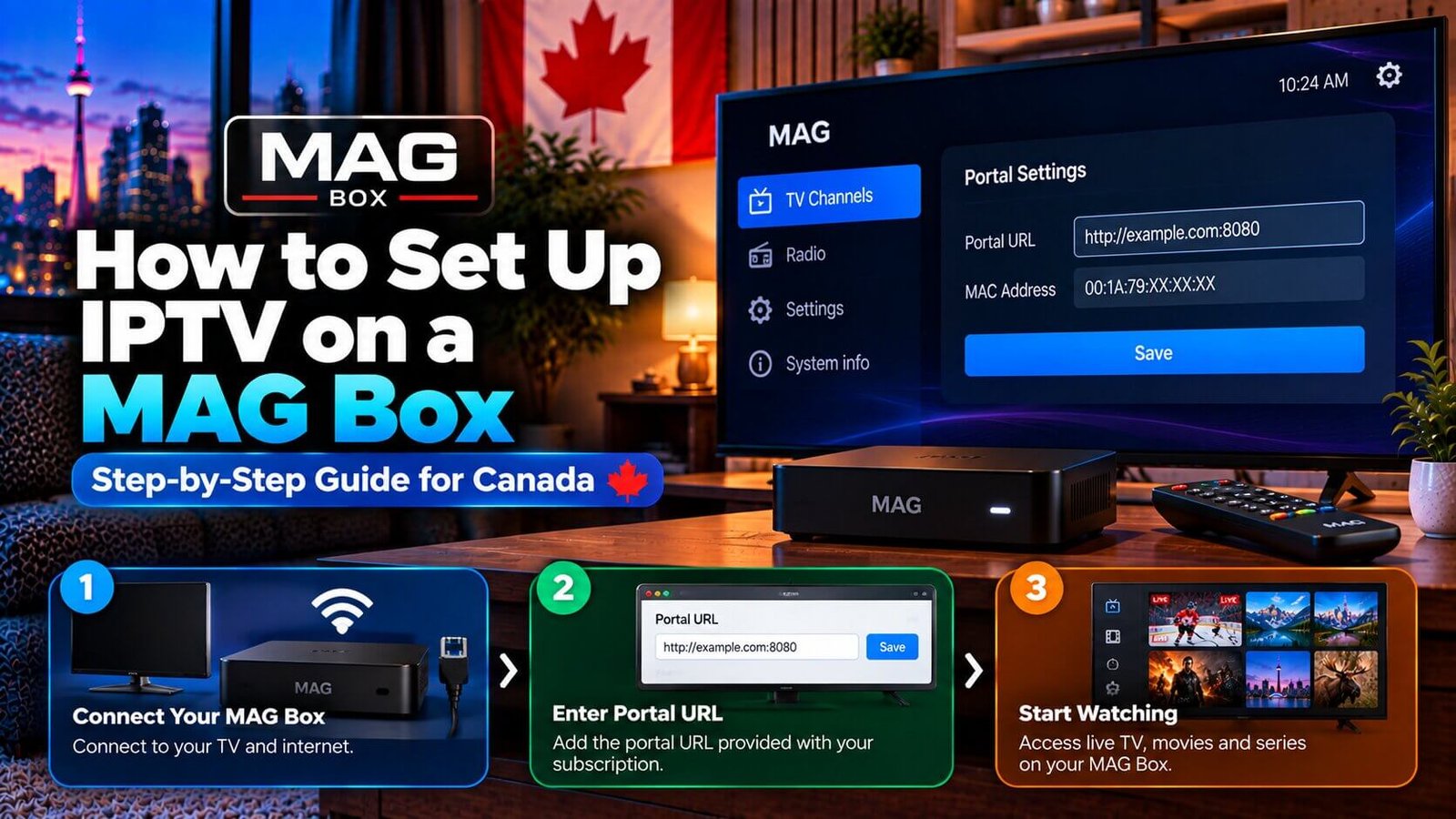
A MAG box uses a different setup path from a generic Android TV box. Instead of installing a collection of Android applications from Google Play, a MAG device commonly uses its built-in portal or middleware settings. The exact menus and available features depend on the model, firmware and service configuration, so treat this article as a careful orientation rather than a universal activation promise.
The primary question behind mag box iptv searches is usually practical: where do I find the device identifier, where does the portal address go, and what should I check when the box does not load? The steps below explain the general sequence without publishing a real portal URL or any customer credentials.
MAG Box IPTV: How It Differs from Android TV
For a MAG Box IPTV setup, the key difference is that a generic Android TV box normally uses an operating system with an application store and can install compatible player apps. A MAG box is a dedicated set-top-box ecosystem with its own menus, firmware and activation workflow. The two devices may both connect to a television and the internet, but their setup screens and connection methods are not interchangeable.
That difference also affects support. A menu label shown on one MAG model may not appear in exactly the same place on another model. Firmware updates can change wording, and the business may support only certain models or activation paths. Record your model number before asking for help.
What you need before starting
- A MAG box model and its power supply.
- An HDMI connection to a television.
- A stable internet connection, preferably tested on the same network you plan to use.
- The MAC address or device identifier shown by your own box.
- The portal or activation information supplied through your authorized service/support process.
Do not copy a portal address from a random forum or use another customer’s credentials. A portal is account-specific information. Sharing it publicly can expose access details and can make troubleshooting harder because support cannot tell which account or device is being tested.
Step 1: Connect the box and find its device information
Connect the MAG box to the television with HDMI, connect the power supply, and select the correct television input. Follow the on-screen setup prompts for language and network connection. Once the home screen is available, look for a device-information, settings or system-information area.
Locate the MAC address or other identifier displayed by the device. Write it down carefully, distinguishing letters from numbers. Some models display more than one network identifier; use the value requested by the authorized support instructions rather than guessing.
Step 2: Locate the portal or activation setting
MAG devices commonly place portal-related settings inside a services, portals, servers or network configuration area. The exact label can vary by firmware. Open the relevant screen only after you have the correct information for your own account.
Enter the supplied portal address exactly as provided. Do not add a real example URL from this article, and do not invent punctuation or spaces. If the device offers a portal name field, use a neutral label that helps you recognize the account without placing private credentials in a public note.
Step 3: Save, restart and test
To complete the MAG Box IPTV setup, save the setting using the device’s own confirmation control, then restart or reload the portal as the screen instructs. Allow the box time to contact the service. If a channel list or menu appears, test more than one type of playback rather than assuming the first loaded screen proves every feature works.
- Confirm the box is connected to the intended network.
- Check that the MAC address was copied correctly.
- Compare the portal value with the private information supplied by support.
- Restart the box after saving a corrected value.
- Record the exact error message if the portal still does not load.
Common MAG setup problems
The portal does not load
Check the network connection, the device identifier and the portal information. A portal-side issue can look similar to a local configuration error. Contact support with the model, MAC address and exact message, but do not send those details in a public comment or forum.
The box loads a menu but no channels
That may indicate an account, portal, package or server-side issue rather than a television problem. Restart the box once, confirm the private details, and ask support to check the account rather than repeatedly changing unrelated settings.
The menu labels do not match this guide
Menu names can vary by model and firmware. Do not force a setting based on a different device. Take a photo of the relevant screen if support asks for one, while hiding any username, password, portal or account identifier that is not needed.
Network choices for a MAG box
A wired connection can reduce one source of wireless interference when the box is close enough to the router. Wi-Fi may be perfectly practical when the signal is stable. The important test is the actual location of the MAG box, not only the result from a phone standing beside the router.
If the box connects but playback stops, record whether the problem occurs at the network screen, at the portal screen or after a channel is selected. These are different stages. A portal error points toward activation or server information, while repeated playback interruptions can involve the network, the device or the stream.
Private information and support requests
A support request should include the MAG model, software version if visible, network type and exact on-screen error. It should not include a password in a public forum or a screenshot that exposes a complete portal and login. If a screenshot is needed, crop or cover private fields before sharing it.
Do not test several random portal addresses. A random address can be unrelated to your account, can lead to an unsafe download or can make it harder for support to identify the original problem. Use the one supplied through the authorized account process, and ask for clarification if the value looks incomplete.
Checking the result without overpromising
After activation, check that the device can reach its menu and that the player displays the expected account state. Test a small selection of playback and navigation functions, but remember that one successful screen does not prove that every feature is available. Electronic programme data, replay, recording and on-demand sections may follow separate rules.
If the device displays a message about an expired connection, authorization or portal, preserve the exact wording. Avoid resetting the box repeatedly before support can inspect the details. A reset may remove local settings and make the original state harder to reconstruct.
Questions to ask before choosing this setup
- Is my exact MAG model included in the current support process?
- Which fields must I receive privately before I start?
- What should I do if the portal loads but the account remains empty?
- Which device details should I provide when asking for help?
Frequently Asked Questions
Does a MAG box need an app like a Firestick?
Usually the setup path is based on the MAG device’s own portal or middleware rather than a generic Android application. Confirm the exact method for your model and account before assuming that an Android player can be installed.
Where do I find the MAC address?
It is typically visible in a system, network or device-information screen, but the menu path varies. Use the value requested by your support instructions and compare it carefully before sending it privately.
What is a portal URL?
A portal URL is an address used by the device to reach the service configuration associated with your account. It is private account information, not a universal public link. Obtain it through the authorized service process and do not publish it.
If you are unsure which setup path applies, review the installation guide and contact the team with your exact MAG model. You can also use the free trial process only after the supported device and activation details have been confirmed.
For an additional authoritative reference related to this topic, see Infomir MAG set-top box information.
Ready to test this on your own setup?
Review the Installation Guide for your device, then use the free trial to check the experience on your own connection before choosing a plan.