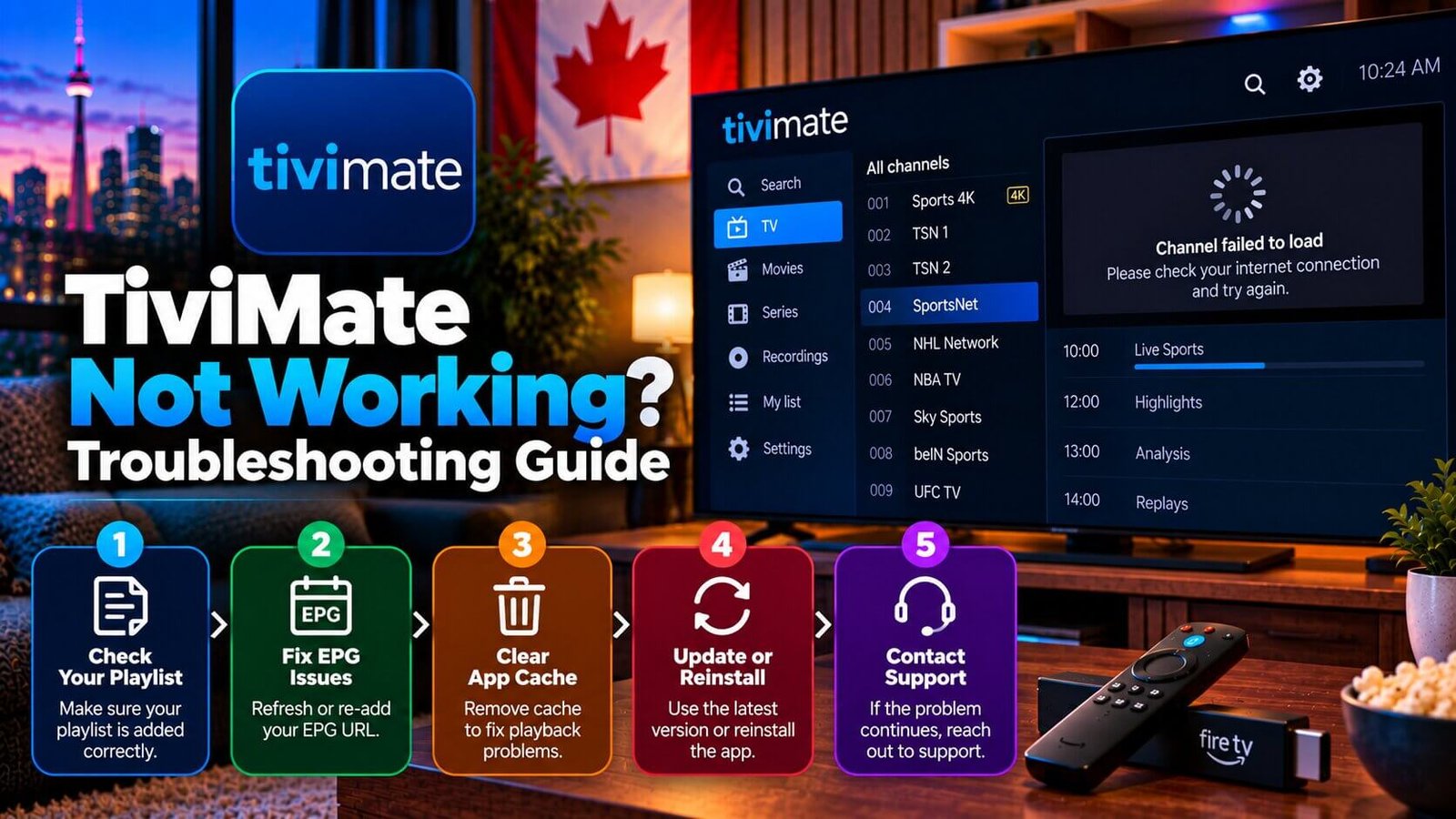
If you searched for “TiviMate not working,” you are probably dealing with a playlist error, a blank EPG, or an app that closes unexpectedly. This guide walks through each of these in order, so you can narrow down what is actually happening before considering a full reinstall.
TiviMate Not Working? Start With the Playlist
When TiviMate is not working and shows a “playlist failed to load” message, the cause usually falls into one of two areas: an issue with your internet connection at the moment you tried to load the playlist, or an issue with the playlist link or login details themselves. Start by confirming your device has a working internet connection, since a temporary drop in connectivity can produce this exact error even when your subscription and playlist details are entirely correct.
If your connection is working normally, double-check that your playlist URL or Xtream Codes login details were entered exactly as provided, since even a small typo, an extra space, or a missing character can cause a loading failure. Playlist links can also expire or change over time depending on how your subscription is structured, so if the details were correct previously but suddenly stop working, confirming with support whether anything has changed on the account side is a reasonable next step.
Fixing a Missing or Blank EPG
A blank EPG, where channels play normally but no program guide information appears, is a different issue from a playlist failure and usually points to the EPG data source rather than the channel stream itself. TiviMate generally allows an EPG source to be configured separately from the playlist, though the exact menu location can vary depending on your device and app version, so it is worth checking whether an EPG URL has actually been added in the app’s settings, since a missing EPG source is one of the more common causes of this specific symptom.
If an EPG source is already configured but still shows no data, the source itself may be temporarily unavailable, or the format may not be fully compatible with your version of the app. In either case, channels typically continue to play normally even without EPG data, since the guide and the video stream are supplied separately.
Clearing TiviMate’s Cache
Like most apps, TiviMate stores temporary data locally on your device to help it load faster, and this cached data can occasionally become corrupted or outdated in a way that causes unexpected errors. Clearing the app’s cache, usually available through your device’s own app settings rather than inside TiviMate itself, can resolve a range of minor glitches without requiring a full reinstall.
After clearing the cache, restart the app and test playback again before assuming a more serious problem is at play. This step is typically quick and reversible, and clearing the cache usually does not delete your playlist or login details, though the exact behaviour can vary depending on your device, its operating system and the app version installed.
When to Reinstall TiviMate
If clearing the cache and confirming your playlist and EPG settings does not resolve the issue, a full reinstall is a reasonable next step. Keep in mind that reinstalling typically removes locally stored preferences, including any saved favourites, custom channel groupings or EPG source settings, although exactly what is retained can depend on your device, app version and any backup or cloud-sync settings in use, so you should be prepared to re-enter your playlist details and reconfigure the app afterward.
Before reinstalling, it is worth confirming that the issue is not affecting other apps or devices on the same network, since a problem that follows you across every app usually points to something outside TiviMate itself, such as your internet connection or subscription status, rather than the app.
It is also worth checking whether an update is available for TiviMate before reinstalling, since some errors are addressed in a newer app version rather than requiring a full reinstall. If your device’s app store shows an available update, installing it and restarting the app is a lower-effort step to try first. Only move on to a full reinstall once you have confirmed the cache has been cleared, your playlist and EPG settings are correct, and no pending update is available.
Avoiding Unofficial Fixes
When an app is not behaving as expected, it can be tempting to search for a shortcut, such as an unofficial modified version of the app or a workaround claiming to unlock premium features for free. These approaches are not something we recommend, since they can introduce security risks to your device and are unrelated to fixing the underlying playlist, EPG or cache issue described above. Sticking to the app version available through your device’s official app store, combined with the steps in this guide, remains the more reliable path back to normal playback.
Frequently Asked Questions
Why does TiviMate say my playlist failed to load?
This usually means either a temporary internet connection issue at the time of loading, or an issue with the playlist URL or login details themselves, such as a typo or an expired link. Checking your connection first, then re-confirming your login details, is the recommended order.
Why is my EPG blank in TiviMate even though channels play?
Channels and EPG data are supplied separately in TiviMate, so a blank guide does not necessarily mean anything is wrong with the channels themselves. Check whether an EPG source has actually been configured in the app’s settings, since a missing or temporarily unavailable EPG source is a common cause.
Does reinstalling TiviMate delete my saved favourites?
In most cases, yes. Reinstalling typically clears locally stored preferences, including saved favourites and custom settings, though this can depend on your device, app version and backup settings, so you should be prepared to reconfigure these along with your playlist details after a reinstall.
If TiviMate is not working after trying these steps, message our support team on WhatsApp for help, or see the Installation Guide for general device setup context.
For an additional authoritative reference related to this topic, see TiviMate on Google Play.
Still need help with your setup?
If the issue continues after the checks above, use our contact page and include your device, app and exact error details. You can also review the Installation Guide for device-specific setup guidance.