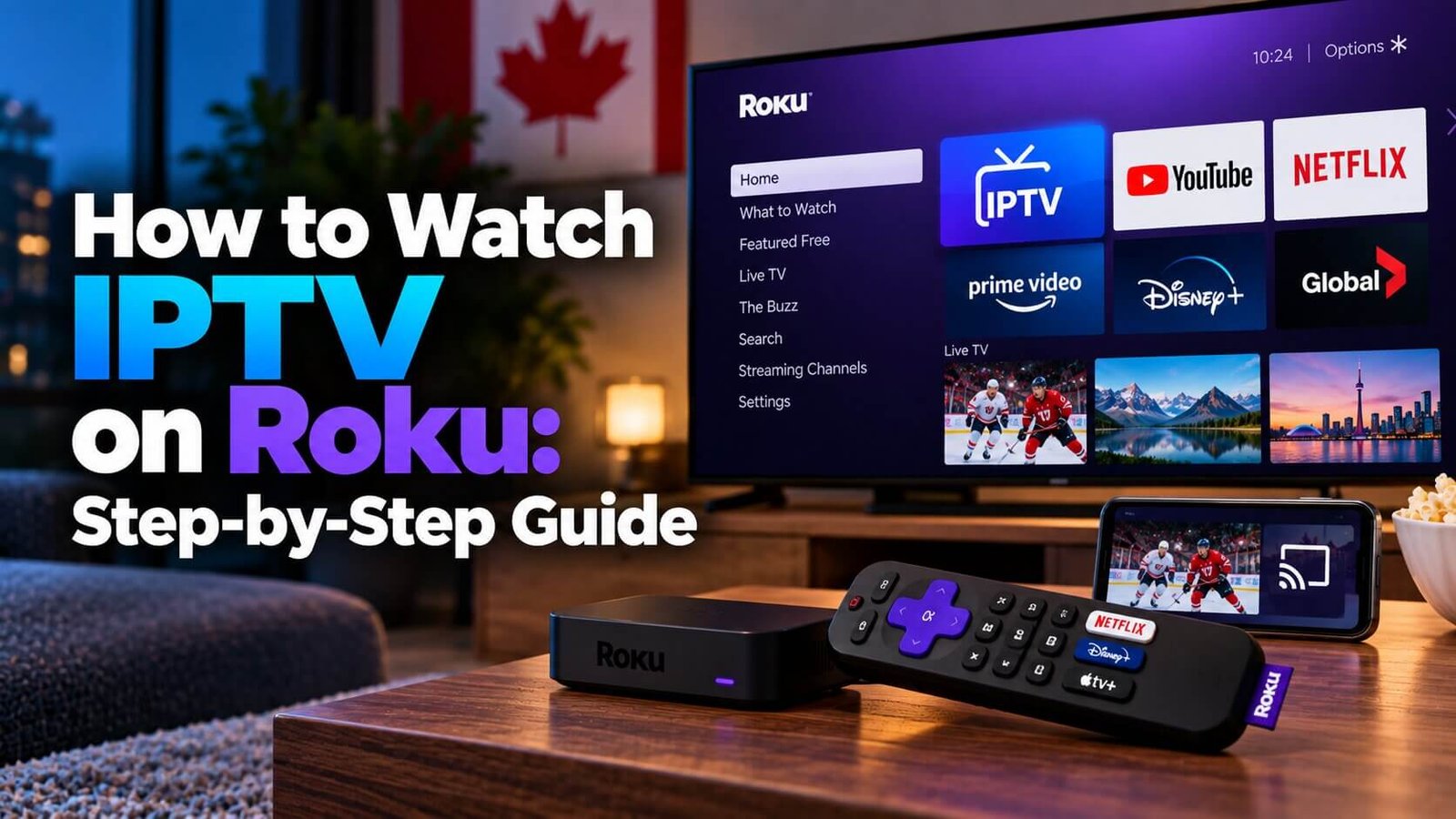
Watching an existing IPTV subscription on a Roku device is possible, but it works differently from Firestick or Android box setups because Roku’s current platform and Channel Store policies generally provide fewer traditional sideloading options than Android-based devices. This guide explains the realistic, supported ways many Canadian Roku owners get iptv on roku tv today: using a Roku-compatible channel where one currently exists, or mirroring and casting from a phone or computer, plus what to check before buying a Roku specifically for IPTV instead of the alternatives already covered elsewhere on this site.
IPTV on Roku TV: Why Roku Is Different
Firestick and Android box guides on this site describe installing a third-party player app directly, then entering your subscription’s login details inside that app. Roku’s operating system works differently: its current platform and Channel Store policies generally provide fewer traditional sideloading options than Android-based devices, and its Channel Store review process is generally stricter about the types of apps it accepts. Check Roku’s own current developer and Channel Store documentation before relying on this, since these policies can change. This means the exact steps used for a Firestick or an Android box will not necessarily carry over directly to a Roku device or a Roku-branded TV, and it is worth understanding this difference before assuming your existing setup instructions will simply work the same way here.
Because of these generally more limited options, most Roku owners rely on one of two realistic approaches: a Roku-compatible channel already listed in the Roku Channel Store, if a suitable option is currently available, or casting and mirroring content from another device onto the Roku screen. Neither approach guarantees the exact same interface as a Firestick or Android box app, and the right choice for you will depend on what is currently available in the Channel Store and what other devices you already own.
Option 1: Use a Roku-Compatible IPTV Channel
Some third-party player apps offer a version built specifically for the Roku Channel Store, though availability, features and naming can change over time, so the most reliable step is to search the Channel Store directly on your own Roku device for a current player channel rather than assuming a specific app is listed. If a suitable channel is available, installing it typically follows Roku’s standard channel-installation process, after which you would enter your subscription’s playlist or login details inside that channel in a similar way to other player apps described on this site.
Because Roku’s channel catalogue changes independently of this guide, do not assume a particular player app is guaranteed to appear, and check the current listing yourself before relying on this option as your primary setup path.
If a channel is available and you install it, treat the first few minutes of use as a quick test rather than assuming everything will work exactly like a Firestick or Android box app. Menu layout, remote-control behaviour and how playlist details are entered can all differ from what you may be used to on another device, even when the underlying subscription is identical.
Option 2: Cast or Mirror IPTV from Your Phone or Computer
If no suitable channel is currently available in the Roku Channel Store, casting or mirroring your subscription from a phone, tablet or computer onto your Roku-connected TV is a realistic alternative. Many Roku models support screen mirroring from compatible devices, which effectively sends what is playing on your phone or computer screen to your television, including a live IPTV stream running inside a player app on that other device.
Mirroring quality depends on your device, your Wi-Fi network and the specific mirroring method your Roku model supports, so picture quality and reliability can vary more than with a dedicated app running directly on the streaming device itself. It is worth testing this approach on your own network before treating it as a permanent solution rather than a temporary workaround.
Because the source device is doing more of the work in a mirroring setup, keeping that phone, tablet or computer plugged in or well charged during longer viewing sessions is a reasonable precaution, since some devices reduce performance or pause mirroring when battery levels get low. A wired network connection is generally not available for the mirroring source in the same way it is for a Firestick or Android box plugged in directly, so a strong, stable Wi-Fi signal in the room where you are watching becomes more important with this approach.
What to Check Before You Buy a Roku for IPTV
If you do not yet own a Roku and are deciding between it and another device such as a Firestick or an Android box, it is worth checking the current Roku Channel Store for a suitable player channel before purchasing specifically for IPTV use. Because Roku’s current policies generally provide fewer sideloading options than Android-based devices, a Firestick or Android box may offer a more straightforward setup path for a typical IPTV subscription, depending on what is currently available for Roku at the time you are deciding.
If you already own a Roku for other streaming purposes, trying the casting or mirroring option first, before purchasing a separate device, is a reasonable way to confirm whether that approach meets your needs.
It is also worth considering how you plan to use the device beyond IPTV. If you already rely on Roku’s existing content apps and interface for other streaming services, adding IPTV through one of the methods above may be preferable to switching your entire setup to a different device just for this one use case. If IPTV is your main reason for buying a new streaming device in the first place, a Firestick or Android box may involve fewer workarounds, based on what is currently available for each platform.
Frequently Asked Questions
Can I install IPTV Smarters Pro directly on Roku?
IPTV Smarters Pro’s official installation guide on this site targets Firestick, Android and Smart TV platforms; whether a Roku-compatible version exists depends on Roku’s current Channel Store listings, so check the Channel Store directly on your own device rather than assuming it is available.
Is screen mirroring to Roku reliable for live TV?
Reliability depends on your specific Roku model, your Wi-Fi network and the device you are mirroring from; it is generally more variable than an app running directly on the streaming device, so testing it on your own setup before relying on it consistently is a reasonable approach.
Should I buy a Roku or a Firestick for IPTV?
Firestick and Android box setups generally allow more direct app installation for IPTV player apps, while Roku’s stricter Channel Store review process can limit which options are available at any given time; checking current Channel Store listings before buying a device specifically for IPTV is the most reliable way to decide.
If you already have a subscription and want to compare device options in more detail, our Installation Guide covers general setup requirements, and you can also start a free 24-hour trial to test your preferred method on your own equipment before committing to a plan.
For an additional authoritative reference related to this topic, see Roku Support.
Ready to test this on your own setup?
Review the Installation Guide for your device, then use the free trial to check the experience on your own connection before choosing a plan.